Published 2026-04-09 by TechNet New England
After completing a Microsoft 365 tenant-to-tenant migration, you may encounter a frustrating issue: iOS users cannot sign into Outlook, Teams, or other Microsoft apps. Instead, they get stuck trying to authenticate against the old tenant or receive the dreaded AADSTS50020 error.
This is a well-documented post-migration issue that affects iOS devices specifically due to how Apple caches Microsoft authentication tokens. The good news? There's a reliable fix that doesn't require calling Microsoft support.
Why This Happens
When you migrate users from one Microsoft 365 tenant to another, the iOS device retains cached credentials and authentication tokens pointing to the source tenant. Even after:
- Deleting and reinstalling Outlook/Teams
- Signing out of accounts
- Resetting the device
...the old tenant information persists in Apple's shared credential cache, which is used across all Microsoft apps on the device.
The AADSTS50020 Error
The error code AADSTS50020 specifically means:
"User account from identity provider does not exist in tenant and cannot access the application."
Translation: The app is trying to authenticate against the wrong Azure AD tenant where your migrated account no longer exists (or never did).
The Fix: Clear Cached Credentials Using Microsoft Edge
The most reliable solution uses Microsoft Edge's internal sign-in management page to clear all cached Microsoft accounts from the device.
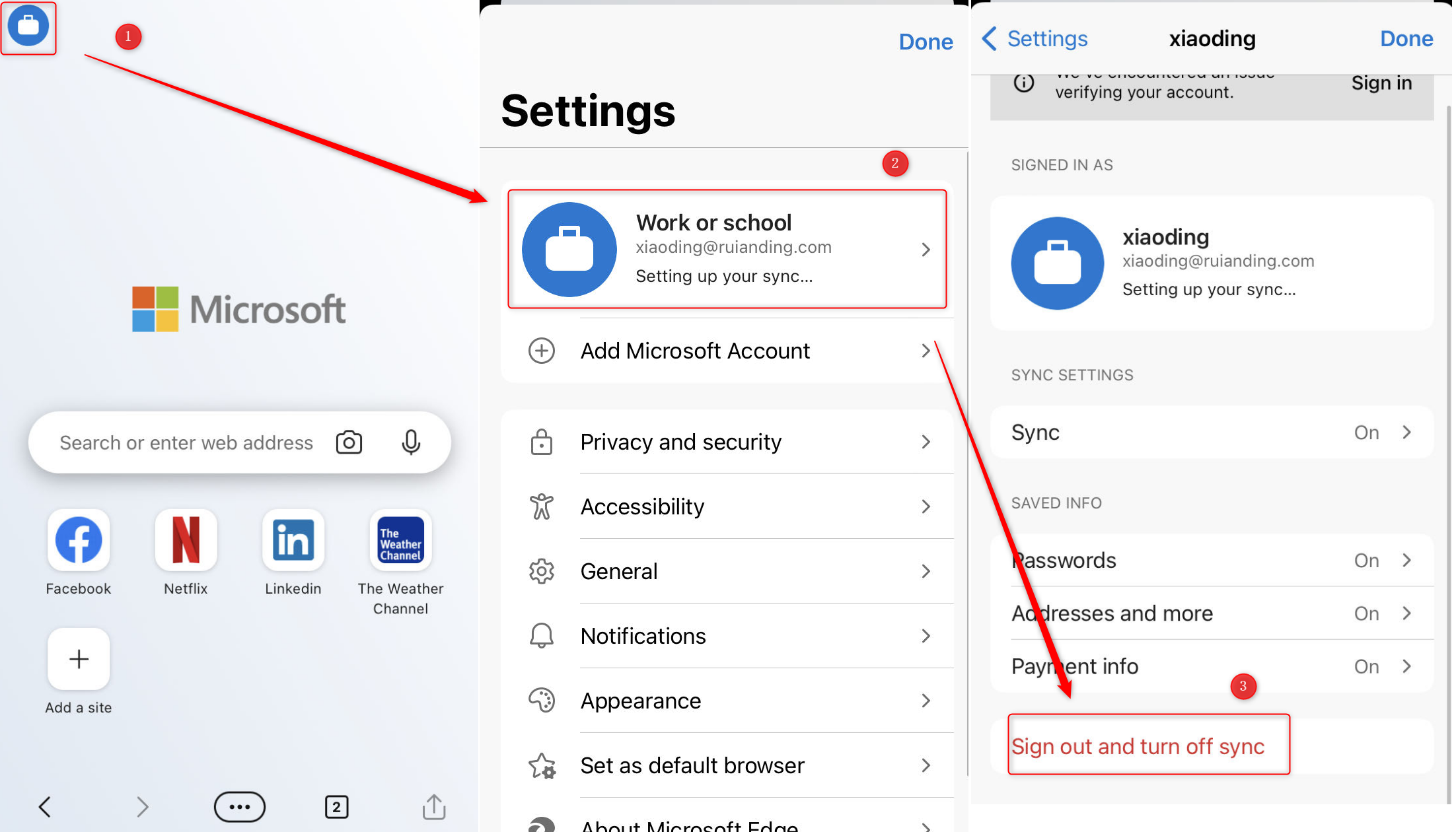
Step-by-Step Instructions
- Uninstall problematic apps — Remove Outlook, Teams, and any other Microsoft apps you're having trouble signing into
- Install Microsoft Edge — Download Edge from the App Store (you can remove it later)
- Open the sign-in internals page — In Edge, navigate to:
edge://signin-internals - Remove all accounts — Scroll to the bottom and tap "RemoveAllAccounts"
- Verify success — You should see a confirmation that accounts were removed
- Reinstall your apps — Download Outlook, Teams, etc. from the App Store
- Sign in fresh — You should now be able to sign in to the correct (new) tenant
Pro Tip: Close all Microsoft apps before clicking "RemoveAllAccounts" to prevent them from writing new tokens to the cache while you're clearing it.
Alternative Method: Manual Outlook Setup
If the Edge method doesn't fully resolve the issue, try setting up Outlook manually:
- Open Outlook and start adding your account
- When prompted, select "Set up account manually"
- Choose "Office 365" as the account type
- Enter your full email address and password for the new tenant
This bypasses AutoDiscover, which may be returning cached information from the old tenant.
Stubborn Cases: Contact Apple Support
In rare cases, the AutoDiscover cache is stored at an even deeper level in iOS. Apple Support can help clear device-level credential caches that Microsoft's tools cannot reach.
When to Escalate to Microsoft Support
If none of the above works, there may be a backend Azure AD issue. Contact Microsoft Support and ask them to run a diagnostic for object failures on the user account.
Quick Fix Checklist
- Delete Outlook/Teams from iPhone
- Install Microsoft Edge
- Go to
edge://signin-internals - Tap "RemoveAllAccounts"
- Reinstall Outlook/Teams
- Sign in with new tenant credentials
Need Help With Your Migration?
Tenant-to-tenant migrations involve more than just moving mailboxes. If you're planning a Microsoft 365 migration or dealing with post-migration issues, contact TechNet New England for expert assistance.