Published 2026-04-15 by TechNet New England
Microsoft just rolled out a significant security change in the [April 2026 Patch Tuesday update](https://msrc.microsoft.com/update-guide/vulnerability/CVE-2026-26151) that every business should know about. If your team uses Remote Desktop to connect to work computers, servers, or cloud environments, you're going to see new security warning dialogs the next time you open an RDP file. This isn't just a cosmetic change. It's Microsoft's direct response to a growing wave of **RDP-based phishing attacks** that have been catching businesses off guard. ## What's an RDP File and Why Should You Care? An RDP file is a small configuration file that tells the Remote Desktop Connection app how to connect to a remote computer. Think of it as a shortcut — double-click it, and you're connected to another machine. The problem? RDP files can also silently share parts of your local device with the remote computer: your clipboard, hard drives, cameras, microphones, smart cards, and more. **Attackers have been exploiting this by sending malicious RDP files through phishing emails.** When a victim opens the file, their device connects to an attacker-controlled server and hands over access to local files, credentials, and sensitive data — often without any visible warning. Until now, Windows showed minimal warnings when opening these files. That changes with this update. ## What's New: The First-Launch Dialog The first time you open any RDP file after installing the April 2026 update, you'll see a new educational dialog explaining what RDP files are and warning about phishing risks. 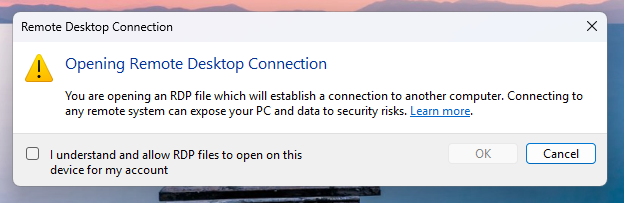 *The new first-launch dialog that appears the first time you open an RDP file after the update.* You'll need to check the box "I understand and allow RDP files to open on this device for my account" before you can proceed. This dialog only appears once per user account. ## The New Connection Security Dialog This is the big change. **Every time** you open an RDP file, a security dialog now appears before any connection is made. It shows: - The remote computer address you're connecting to - Whether the publisher of the RDP file can be verified - A checklist of every local resource the file wants to access Critically, **all resource sharing is turned OFF by default.** You have to manually check each box to allow access to your drives, clipboard, cameras, etc. ### Unsigned RDP Files (Unknown Publisher) When an RDP file isn't digitally signed, there's no way to verify who created it. The dialog shows a red shield with **"Caution: Unknown remote connection"** and labels the publisher as unknown. 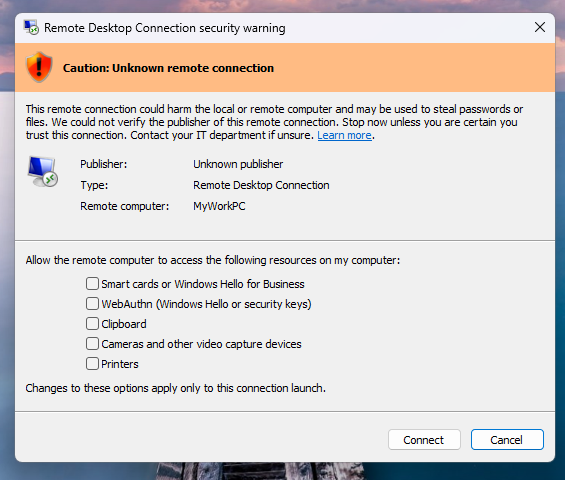 *An unsigned RDP file triggers a prominent red warning. If you receive an RDP file by email and see this, do NOT connect.* This is the warning you'll see most often — and the one that should make you pause. If you received this file via email or downloaded it from the internet, **stop and verify with your IT department before connecting.** ### Signed RDP Files (Verified Publisher) When an RDP file is digitally signed, the publisher's name appears in the dialog with an orange shield and the message **"Verify the publisher of this remote connection."** 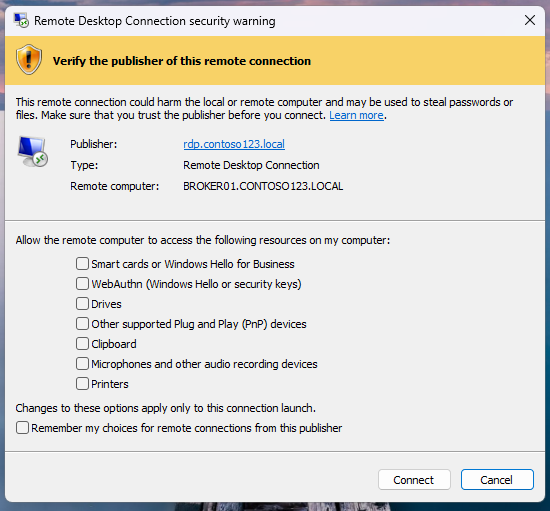 *A signed RDP file shows the publisher's identity. Always verify the name matches the organization you expect.* A digital signature confirms who created the file and that it hasn't been tampered with — but it doesn't guarantee the file is safe. Attackers can sign files using names that closely resemble legitimate organizations. Always read the publisher name carefully. ## Understanding Redirections: What's at Stake The security dialog lists every type of resource the RDP file wants to access. Here's what each one means and the risk it carries: ### High Risk Redirections **Drives** — This is the most dangerous redirection. It gives the remote computer full read/write access to your local hard drives, USB drives, and network-mapped drives. An attacker could steal files, plant malware in your Startup folder, or access network shares through your machine. **Clipboard** — Shares everything you copy and paste. An attacker can read passwords, sensitive text, or confidential information that you copy on your local device. **Smart Cards / Windows Hello for Business** — Allows the remote computer to use your authentication credentials. An attacker could impersonate you to access your organization's resources. ### Medium Risk Redirections **WebAuthn (security keys/passkeys)** — Allows the remote computer to use your FIDO2 security keys. Watch for authentication prompts that indicate the request came from a remote session. 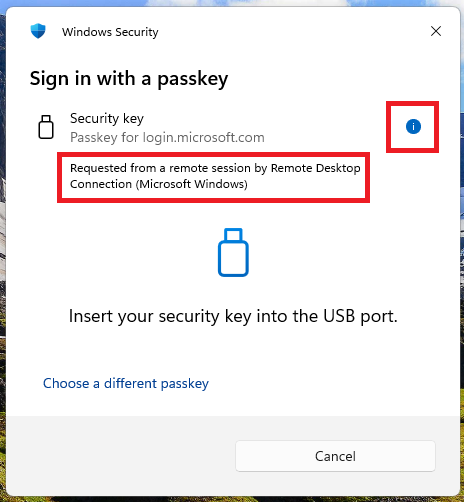 *If you see "Requested from a remote session" on an authentication prompt you didn't expect, do not approve it.* **Microphones** — Gives the remote computer access to record audio from your environment. An attacker could eavesdrop on conversations and meetings. **Cameras** — Gives the remote computer access to your webcam. An attacker could conduct visual surveillance. ### Lower Risk Redirections **Printers** — Allows the remote session to print to your local printers. An attacker could waste resources or print misleading documents. **Ports (COM/LPT)** — Shares serial and parallel ports. Risk depends on what's connected. **Point-of-Service Devices** — Shares POS equipment like barcode scanners and receipt printers. **Plug and Play / RemoteFX USB Devices** — Shares USB peripherals at various access levels. ## What This Means for Your Business If you manage IT for your organization — or you're a business owner who relies on Remote Desktop — here's what you need to do: ### For IT Administrators 1. **Sign your organization's RDP files.** If your team uses RDP files to connect to internal resources, digitally sign them so users see the verified publisher dialog instead of the scary red warning. 2. **Communicate the change to your users.** People are going to see new dialogs and may be confused or alarmed. Send a brief email explaining what's happening and why. 3. **Review your RDP file distribution.** If you distribute RDP files via email or shared drives, consider whether there's a more secure delivery method. 4. **Update your security training.** Add RDP phishing to your awareness training materials. Teach users to never open unexpected RDP files. 5. **Know the temporary rollback option.** If this causes disruption, you can temporarily revert to the old dialog behavior via registry: - Key: `HKLM\\Software\\Policies\\Microsoft\\Windows NT\\Terminal Services\\Client` - Name: `RedirectionWarningDialogVersion` - Type: REG_DWORD - Value: `1` - **Note:** Microsoft will remove this option in a future update. Plan to transition. ### For End Users 1. **Never open an RDP file you weren't expecting** — even if the email looks legitimate. 2. **Check the remote computer address.** If you don't recognize it, don't connect. 3. **Only enable the redirections you actually need.** Leave everything else unchecked. 4. **Report suspicious RDP files** to your IT team immediately. ## Azure Virtual Desktop and Windows 365 Users If you connect through Azure Virtual Desktop or Windows 365, your RDP files are typically signed by Microsoft. You should NOT see the new security dialog when connecting to these services. **If you do see it, do not proceed** — contact your IT department to investigate. ## The Bottom Line This update is a win for security. RDP-based phishing has been a blind spot in Windows for too long, and these new warnings give users a real chance to catch malicious connections before any damage is done. The key takeaway: **if you see a red "Caution: Unknown remote connection" warning, stop.** Verify the file through a separate channel before connecting. When in doubt, call your IT team. --- *Need help securing your Remote Desktop environment or training your team on the latest threats? [Contact TechNet New England](/contact) — we help businesses across Massachusetts stay protected.*